How to run the mask node beside a TCPP node and read what it shows: the masks a node
delivers, the values that fill them, and the error code it answers every request
with. Everything it shares with the node is in the
node's manual.
Click any figure to enlarge it.
Three requests
mask_output, display_output and ping; anything else is answered with an error.
Auto-reply
Every request gets a signed response whose error_code says what was found.
One binary
The node's code with a display on top. Nothing to install.
What a mask node is
tcpp-mask is a second executable, built from the same code as the node: a
TCPP module that behaves like a display. A node delivers a layout to it with
mask_output and fills that layout with display_output; the mask
node draws the result as a device screen and answers every request on its own, with a
signed response whose error_code says what it found. That gives a node,
or a TCPP implementation of your own, a counterpart to talk to that checks what it is
sent the way a display would.
Everything else about it is the node: the same identity, frame log, peers and
signatures, and the same Compose, Inbox,
Sent, Peers,
Identity and Log views, kept as debug
tabs below its own Mask view. The
node's manual describes those, and what it says applies here
unchanged. This manual covers what the mask node adds.
Getting started
What you were given
One executable, downloaded as an archive of its own beside the node's,
tcpp-mask-…-windows-amd64.zip. Like the node it needs nothing installed
and reaches out to nothing on the internet. Unpack it and start it from a terminal:
# Windows
.\tcpp-mask.exe

# macOS and Linux
chmod +x tcpp-mask
./tcpp-mask
The download is unsigned, so the first start meets the same warnings as the node's;
Getting started in the node's manual says how to get
past each.
Running it beside a node
A mask node is no use alone: it waits for a node to send it masks. Its defaults are
chosen so that it pairs with a node started on the usual port:
Setting
Node
Mask node
--port
8443
8444
--peer
itself
localhost:8443
--node-type
CSU
LDU, the local display unit the mask examples address
its files
in tcpp-node-data/ beside the binary
in tcpp-mask-data/ beside the binary
# PowerShell, two windows
.\tcpp-node.exe --peer localhost:8444
.\tcpp-mask.exe

# macOS and Linux
./tcpp-node --peer localhost:8444
./tcpp-mask
Open https://localhost:8443/ for the node and
https://localhost:8444/ for the mask node. Each has its own self-signed
certificate, so the browser warns once for each.
What appears on disk
Each keeps its key, certificate, log and records in a folder of its own,
tcpp-node-data/ or tcpp-mask-data/, so the mask node can be
unpacked into the same directory as a node without the two sharing an identity. The
files in tcpp-mask-data/ are the node's, listed under
What appears on disk. On startup it prints the node's
banner and three lines of its own:
2026/10/22 11:39:51 TCPP mask node LDU / P:NODE-01D1F0C8
2026/10/22 11:39:51   listening   https://localhost:8445/
2026/10/22 11:39:51   identity    C:\Users\User\tcpp-lab\m\tcpp-mask-data
…
2026/10/22 11:39:51   masks       0 in the library
2026/10/22 11:39:51   accepts     mask_output, display_output, ping
2026/10/22 11:39:51   auto-reply  on, strict checks on
The lab used in this manual
The figures come from the node manual's two-node lab
and a third instance beside it, M, started with
--port 8445 because node B already holds 8444. Node
A sent it the meter sample's mask_output, then its
display_output, then a display_output naming a mask M was
never given, and a ping.
The Mask view
The mask node opens on Mask. The node's own views sit below it
under Debug.
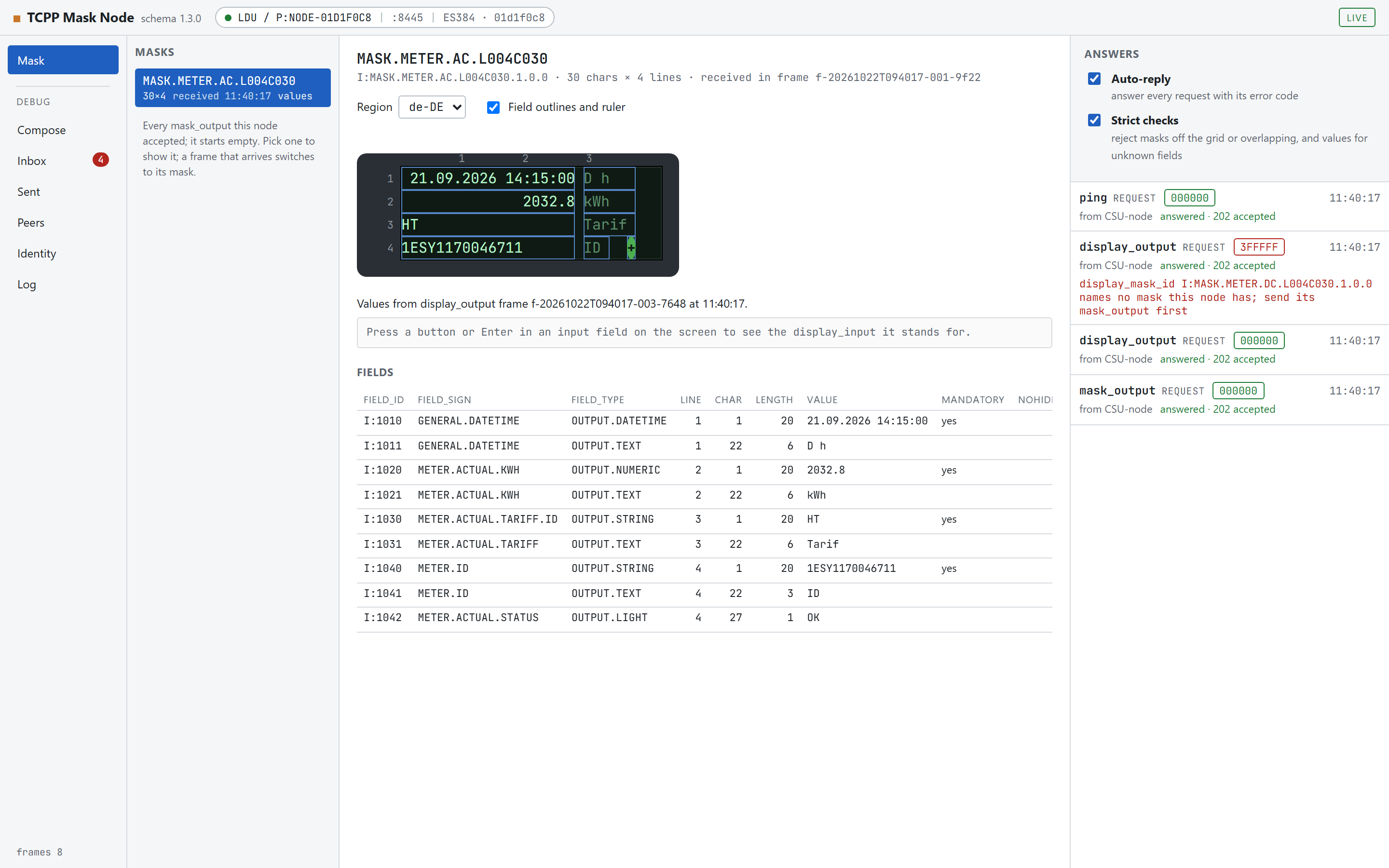
Masks, on the left, is the library: every mask the node accepted,
each with its size in characters × lines, where it came from, its layout issues and whether
values have arrived for it. Click one to show it. A frame that arrives for a mask
switches the view to that mask.
The middle column is the mask itself: its sign, id, size and the frame it came in,
the device screen, the frame its values came from, and the Fields
table, one row per field with its id, sign, type, position, length, current value
and flags.
Answers, on the right, lists every request the node received with the
code it was answered with.
The screen
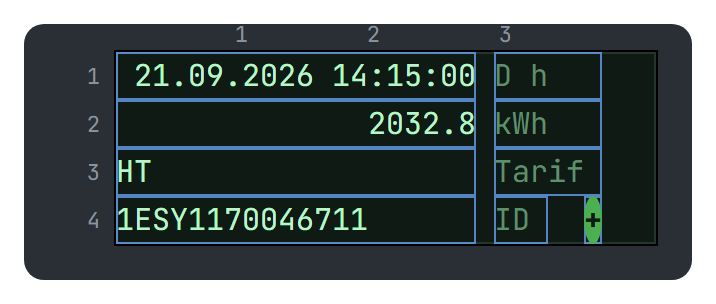
The screen with Field outlines and ruler on.
The screen is drawn on the mask's character grid. Region picks
which of the mask's regions (such as de-DE) the labels are
shown in. Field outlines and ruler frames each field and numbers
the lines and every tenth column, which is the quickest way to see a field that is off
by one. Pressing a button or Enter in an input field on the screen prints the
display_input that press stands for, below the screen; the mask node does
not send it.
Answers and the two switches
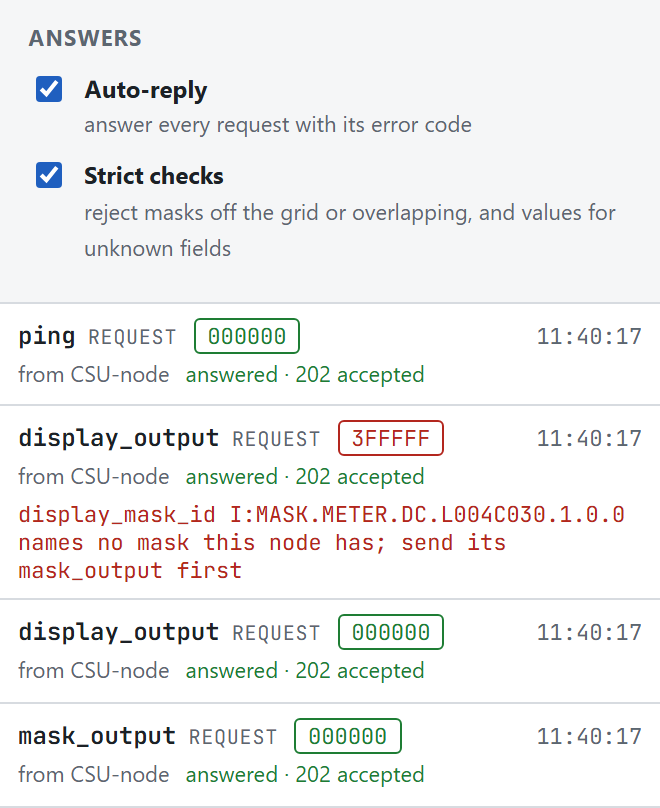
Four requests from node A, each answered on its own. The 3FFFFF one named
a mask the node never received.
Each line names the request, the code it was answered with, the peer, and whether the
answer was delivered. A code other than 000000 comes with the reason, which
is also what the answer carries in error_text.
Switch
Flag
Off means
Auto-reply
--auto-reply
Answers are still worked out and listed, but nothing is sent: the frame waits in Inbox for a reply made by hand, as on a node.
Strict checks
--strict-layout
A mask with layout findings, and values for fields the mask does not have, are accepted, and the findings are shown instead of answered.
Both are on by default. The flags set them at startup, for example
--strict-layout=false; the switches change them while the node runs.
What it accepts, and what it answers
mask_output delivers a layout. Accepted, it joins the library, replacing
one with the same mask_id, and is shown.
display_output fills a mask with values. The mask is named by
display_mask_id, and each value is bound to its field by
field_id.
ping is answered with the ping_response example's record.
Any other request is answered with an error. Responses are never answered, so two
answering nodes cannot loop. The codes come from all_error_codes, with
FFF as the module digits, as in the specification's own examples:
Found
error_code
frame is not a JWS / payload not JSON / no head
103FFF / 201FFF / 202FFF, shown but not answered: there is no head to answer
signature does not match the stored peer key
104FFF
a head member fails its schema
211–232 by member (213FFFrecord_udt, 222FFForigin_id, …), else 203FFF
record_type not one of the three
211FFF
record_direction other than request
212FFF
record missing or empty
301FFF
required element missing / required value null / wrong type, pattern, length
302FFF / 303FFF / 4FFFFF
mask off the grid, overlapping, or reusing a field_id (strict)
303FFF
display_mask_id names no known mask, or a value names no field of it (strict)
3FFFFF
none of the above
000000
parsed carries the code at the path of each finding, for example
record/mask/mask_fields/14, and up through record/mask and
record. error_text says what was wrong, cut to the characters
the head's pattern allows. A head member that failed its own check is not echoed back:
the node's own type and id, or the sender's X-TCPP-Node, stand in for it.
The library across restarts
The library follows the frame log, as the inbox does. It starts empty — masks only
arrive from a peer, the shipped examples are for the node that sends them — and on
startup the received frames are replayed oldest first. Where the log
holds the answer that went out, that answer counts: a mask accepted with strict checks
off stays accepted after a restart with them on.
To start over with an empty library, stop the mask node and remove
tcpp-frames.jsonl from tcpp-mask-data/. Its key and its
peers stay, so it is still the same node to everyone who verifies it.
Workflows
A. Drive a mask from a node
Start a node with --peer localhost:8444 and the mask node beside it, and open both in the browser.
On the node, open Compose, select mask_output, press Load… → example_meter and Sign & Send. The mask node shows the meter mask, with no values yet.
Select display_output, load example_meter and send it. The screen fills with the meter's values.
Both answers arrive in the node's Inbox as responses tied to their requests, and the mask node lists them under Answers.
Change a field_id or the display_mask_id and send again to see the code a display answers a faulty frame with.
An older node holds older samples
The mask_output and display_output samples were revised
after the build of 21 October 2026, so that each display_output fills the
mask of the same variant. A node directory created with that build or an earlier one
keeps its records/mask_output_request/ and
records/display_output_request/ as they were, because an existing schema
directory is never re-seeded: delete both from tcpp-node-data/ and
restart the node to have the current samples written.
B. Answer a frame by hand
Switch Auto-reply off, or start the mask node with --auto-reply=false.
Send it a request from the node. It still shows the mask and lists the code it would have answered with, but sends nothing.
Open the debug tab Inbox on the mask node and select the frame: the reply form is the node's, pre-filled from the request.
Set error_code and parsed to whatever your test needs, and press Sign & Send response.
Command line
The mask node takes every flag of the node, described under
Command line and files in its manual. Four of them start
from other defaults, and two are its own:
Flag
Default
Meaning
--port
8444
TLS port to listen on.
--peer
localhost:8443
Default target, and where a node on the usual port listens.
--node-type
LDU, or the stored value
Three uppercase letters. Persisted after the first run.
--data-dir
tcpp-mask-data/ beside the binary
Where the key, certificate, log, peers and records live.
--auto-reply
true
Answer received requests without the operator. Switchable in the browser.
--strict-layout
true
Reject masks that do not lay out cleanly, and values for unknown fields. Switchable in the browser.
The data folder is not called tcpp-mask/ because on macOS and Linux that
is the binary's own name. It runs and stops like the node; a failed start prints
tcppmask: <reason> and exits 1.
HTTP API
The mask node serves every route of the node, listed under
HTTP API in its manual, with the same absence of
authentication. The mask view uses three more:
Route
Meaning
GET /api/mask/state
The library, the mask shown, its values and layout findings, the answers given and the two settings.
POST /api/mask/active
Show another mask: {"mask_id":"…"}. 404 when the library has no such mask.
PUT /api/mask/settings
Change either switch: {"auto_reply":true,"strict":false}; a member left out keeps its value. Returns both settings.
# turn strict checks off on a running mask node
curl -k -X PUT https://localhost:8444/api/mask/settings \
  -H 'content-type: application/json' -d '{"strict":false}'
Appendix
Glossary
Mask
A screen layout delivered with mask_output: a grid of characters × lines and the fields placed on it, named by its mask_id.
Field
One place on a mask, named by its field_id, that a display_output value is written into.
Region
A language variant of a mask's labels, such as de-DE.
Mask node
tcpp-mask, a node that shows masks and answers every request with an error code, as a display would.
Every screenshot in this manual was taken from a running mask node beside the node
manual's two-node lab, not drawn, so what you see here is what the application does.
They are captured by the same script as the node's figures, which drives a headless
browser through the steps an operator takes, and they are retaken whenever the
interface changes.